
Files that stay files.
Read Markdown the way it was meant to look, and edit it one keystroke later.
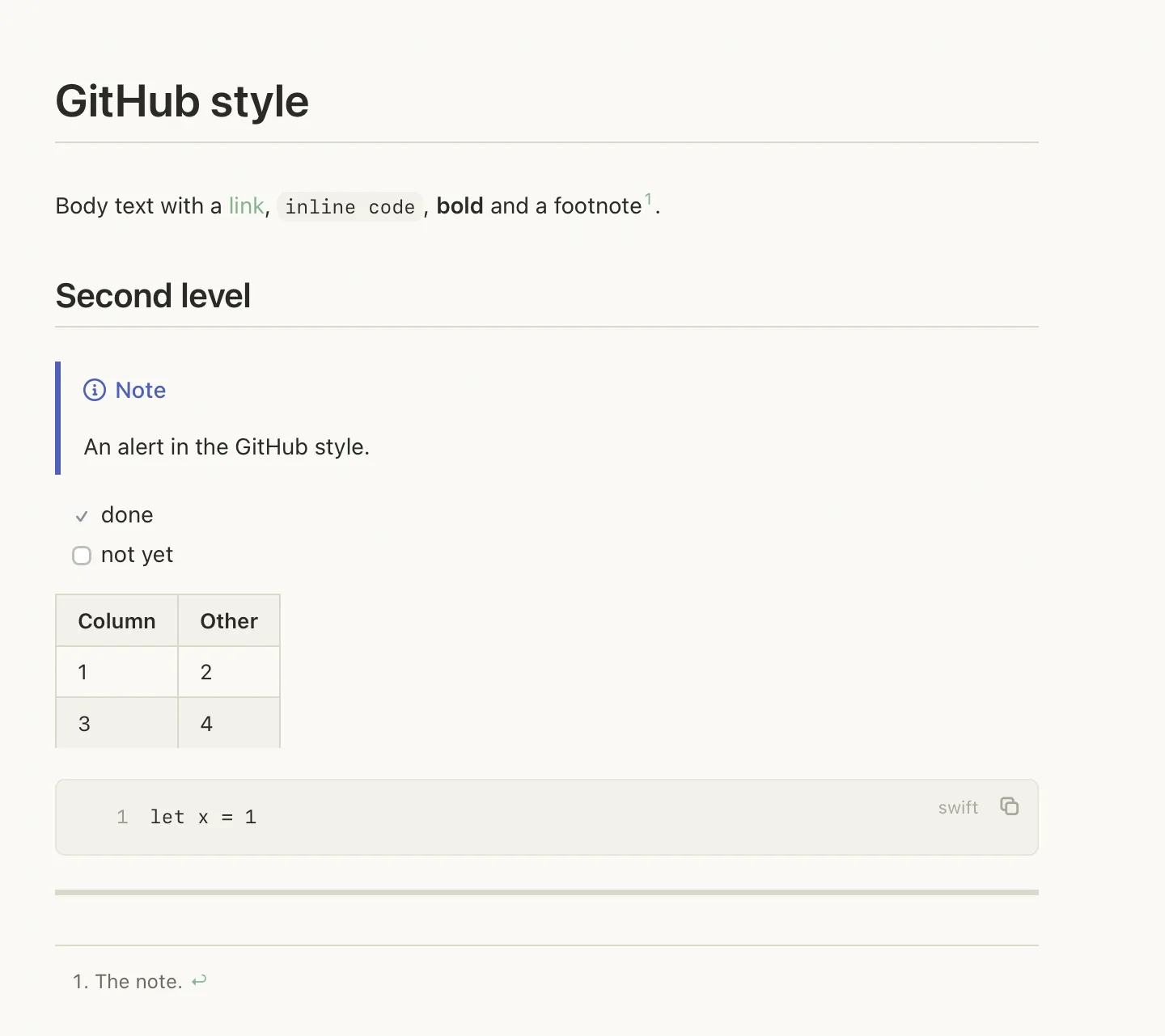
Tables, diagrams, maths and code are drawn where they sit. The same calm window opens JSON, XML, CSV, TOML and YAML as trees, graphs and tables. Nothing is imported; the file on disk is the document.
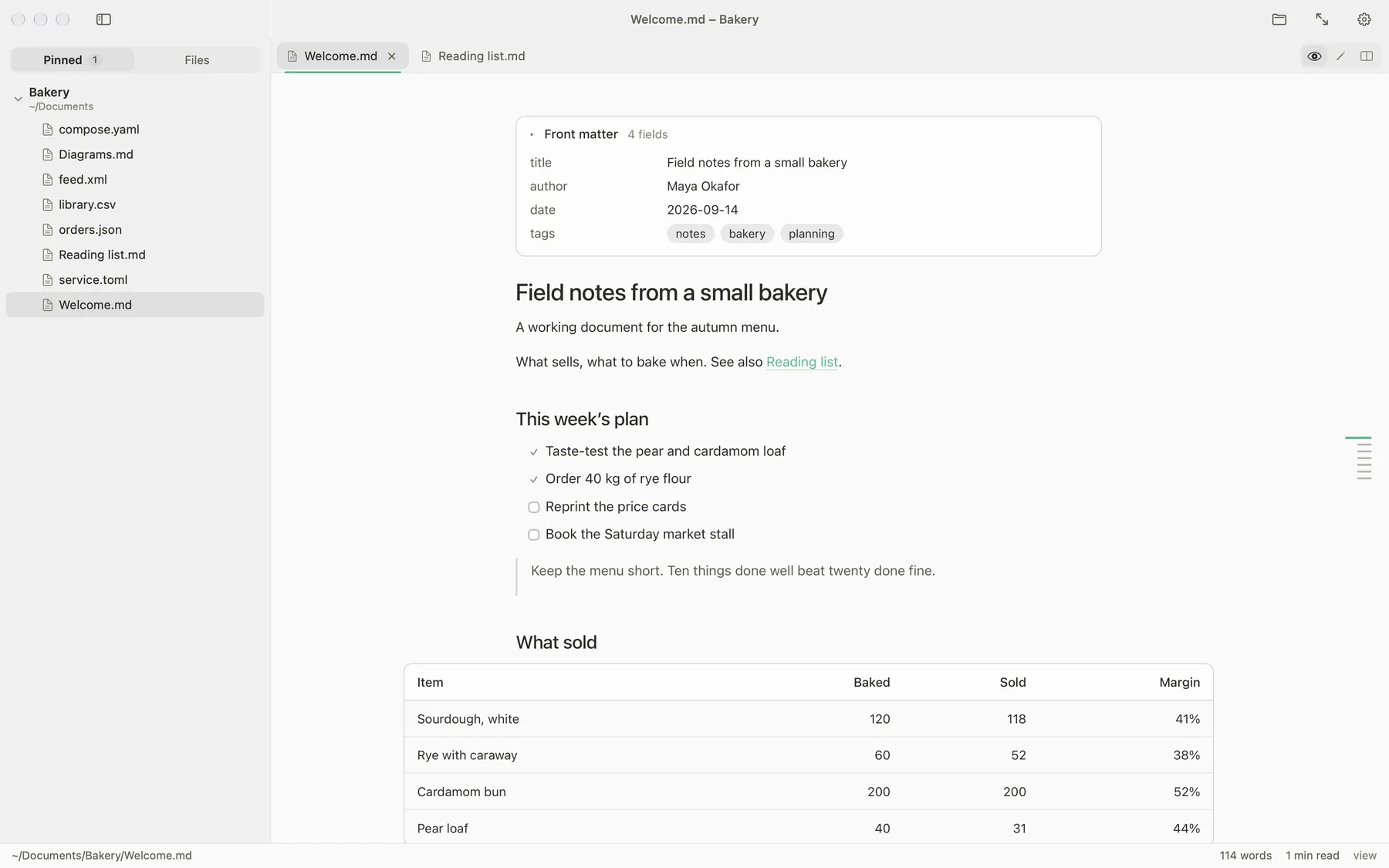
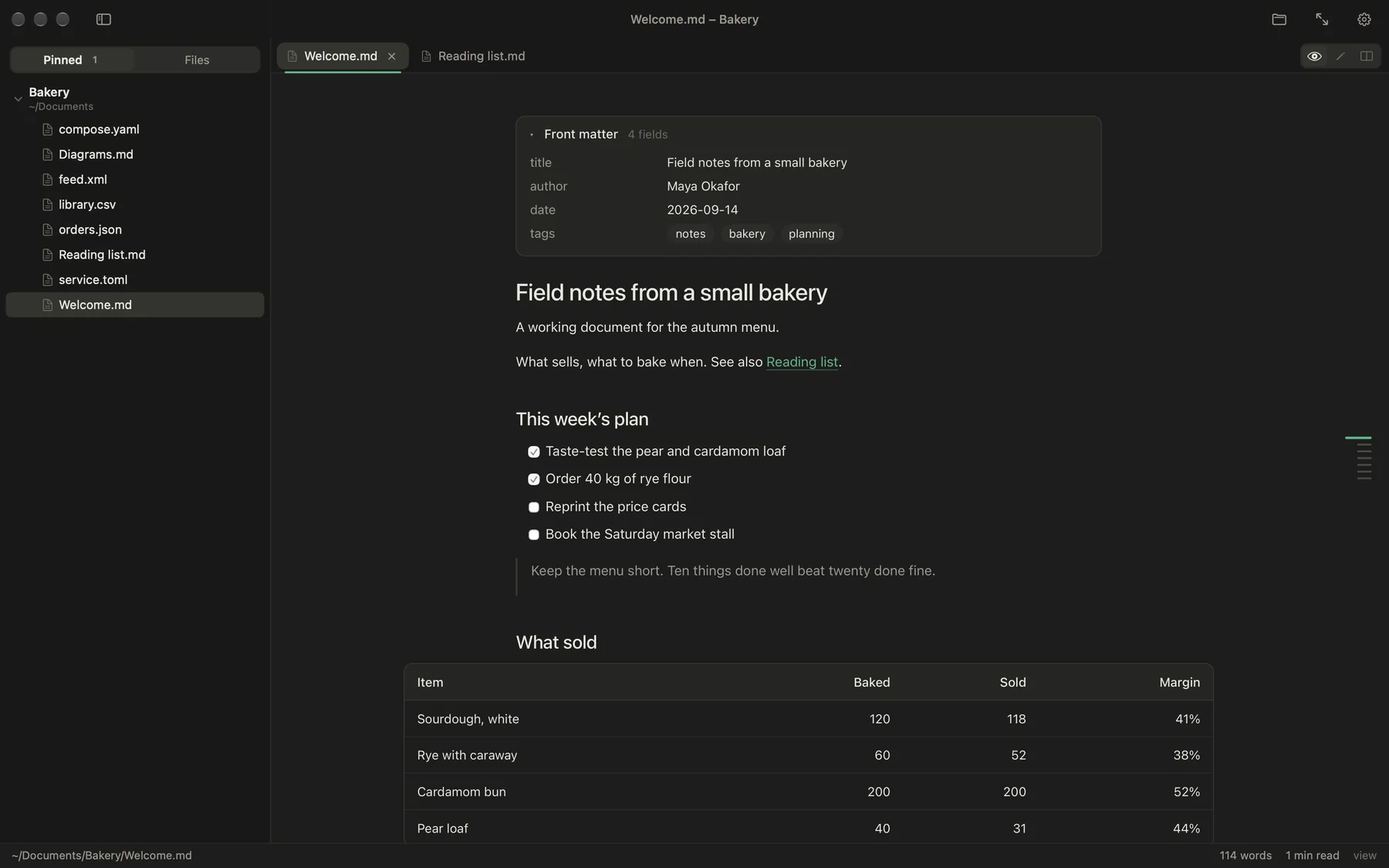
Every Markdown app makes you choose.
Editors
Built for writing, and the preview is an afterthought. Open one to read a file and you are looking at source, with a toggle you have to remember.
Previewers
Built for reading, and that is all they do. No way to fix the typo you just spotted, and your other file types are still in a browser tab.
Mark View is the third thing
Reading first, editing one keystroke away, and the same window for the data files next to your notes. The file stays a file.
Three surfaces. No more.
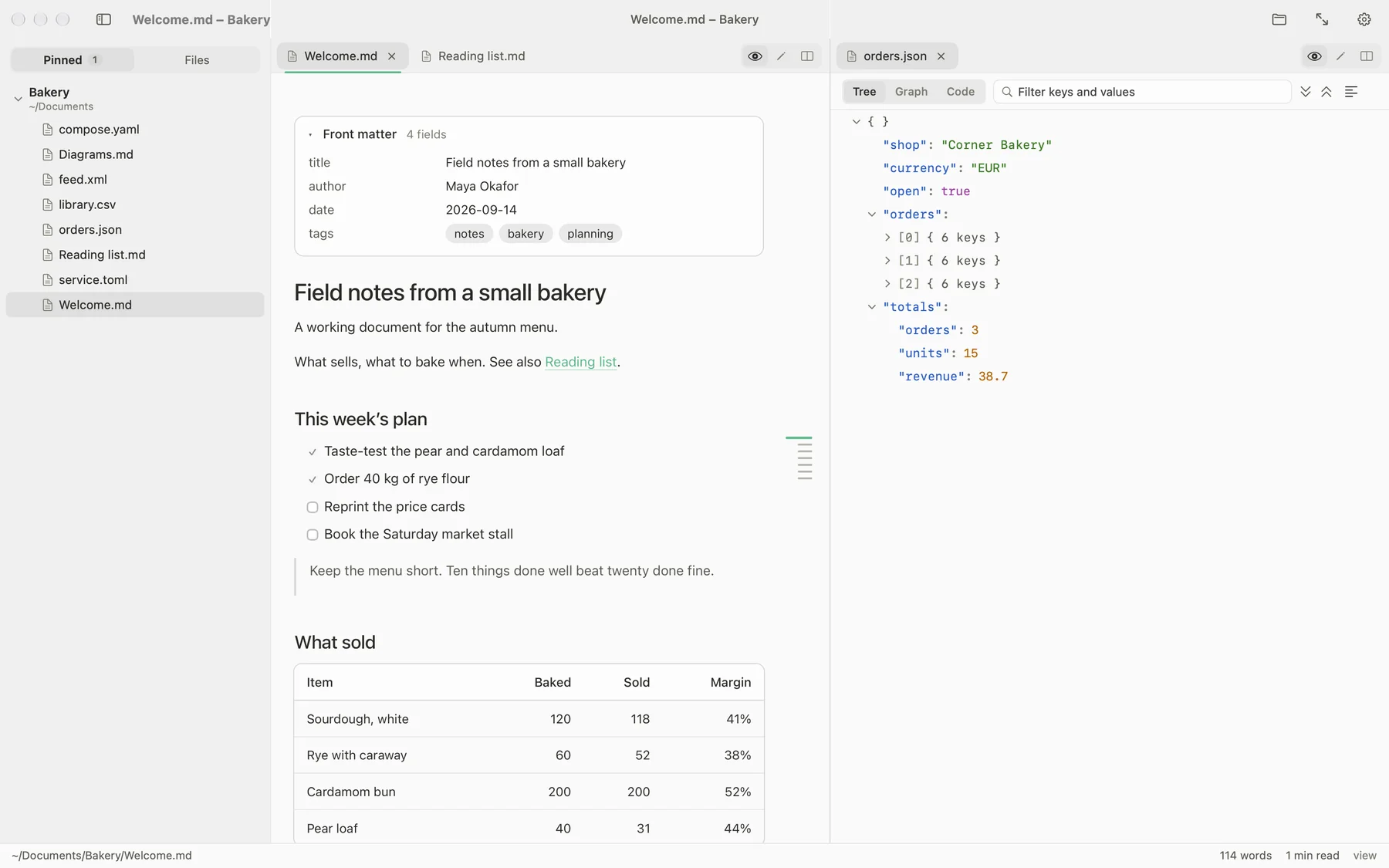
the folders on your Mac, a tree that loads as you open it
the folders you work in, kept at the top, each with its own tree
tabs and panes: drag a tab to an edge to split, or press ⌃⌘ and an arrow
the path, the line and column while editing, words, reading time, the mode
Reopen the app and every window is where you left it: the same tabs, the same panes, the same place in each document.
The contents follow you.
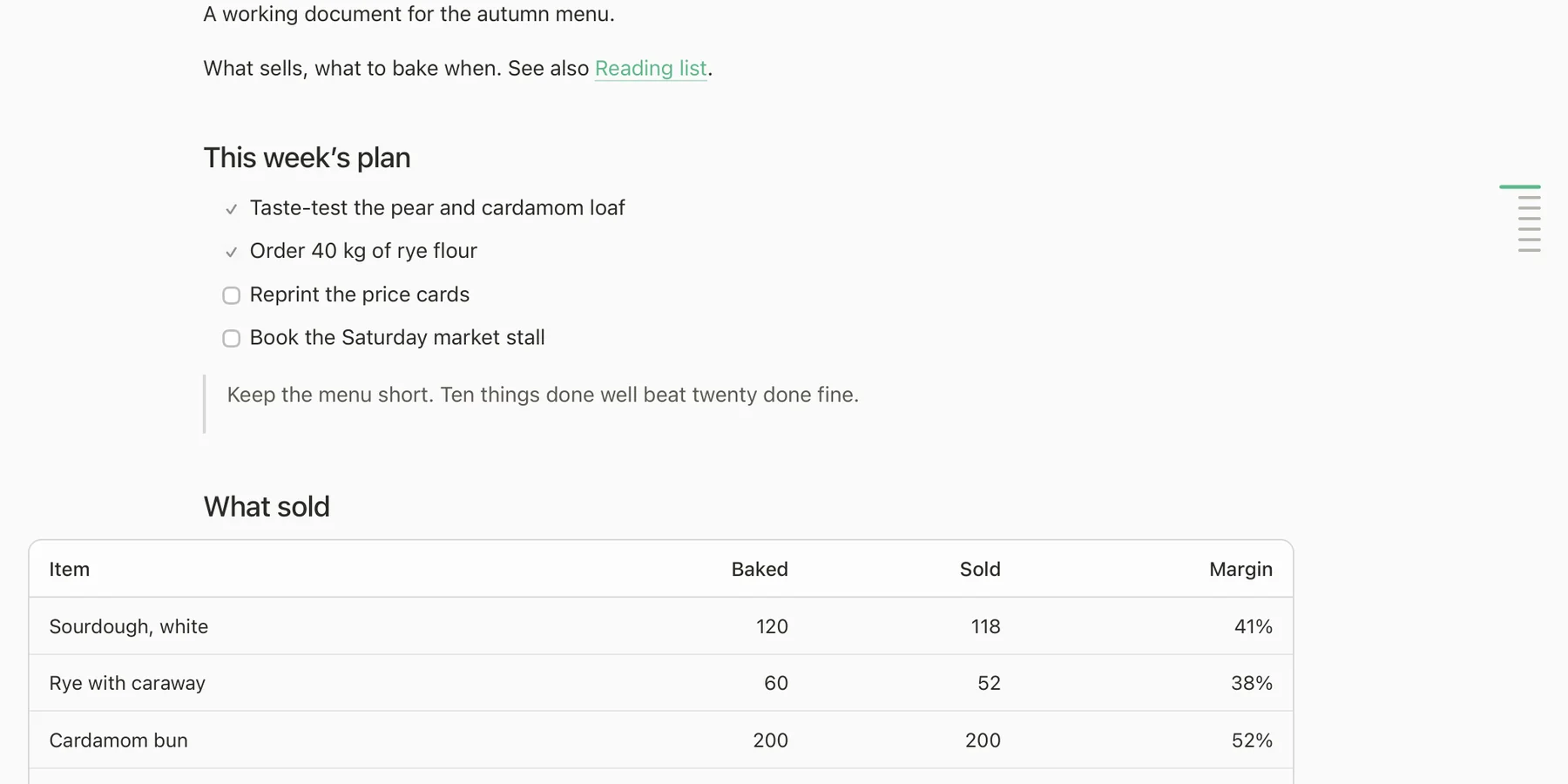
At rest: one line per heading. Longer lines are bigger headings; the ones above you are tinted as read.
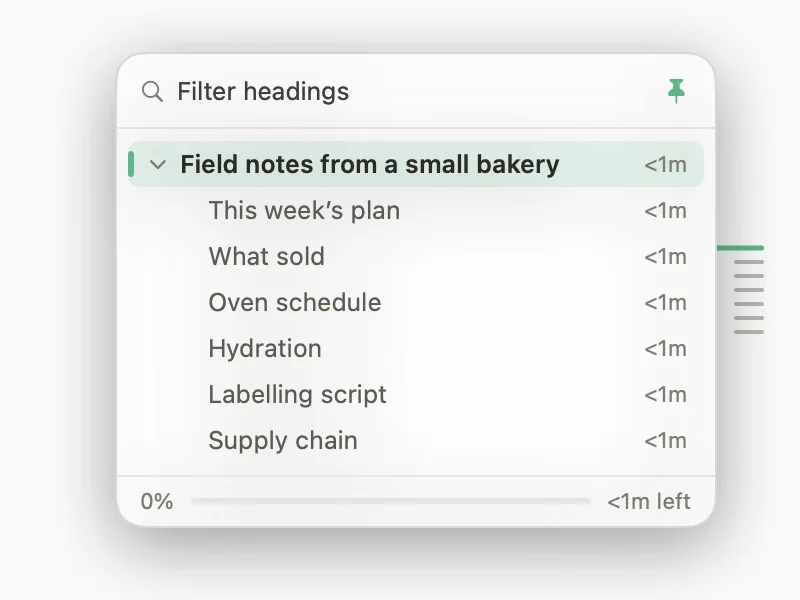
Hover the lines: a peek, then the whole outline.
rest on a line and its heading name appears beside it
pause a moment and the full hierarchy opens, with a chevron on every parent
type, and the list flattens to the headings that match
reading time for each section, and how long is left from where you are
drag along the lines to move through the document at once
⇧⌘O keeps the outline open as a panel
twelve positions: any edge, start, middle or end. It never covers the text; the page makes room for it
It works in the editor too: click a heading and the editor scrolls to its source line.
Everything graphical is drawn.
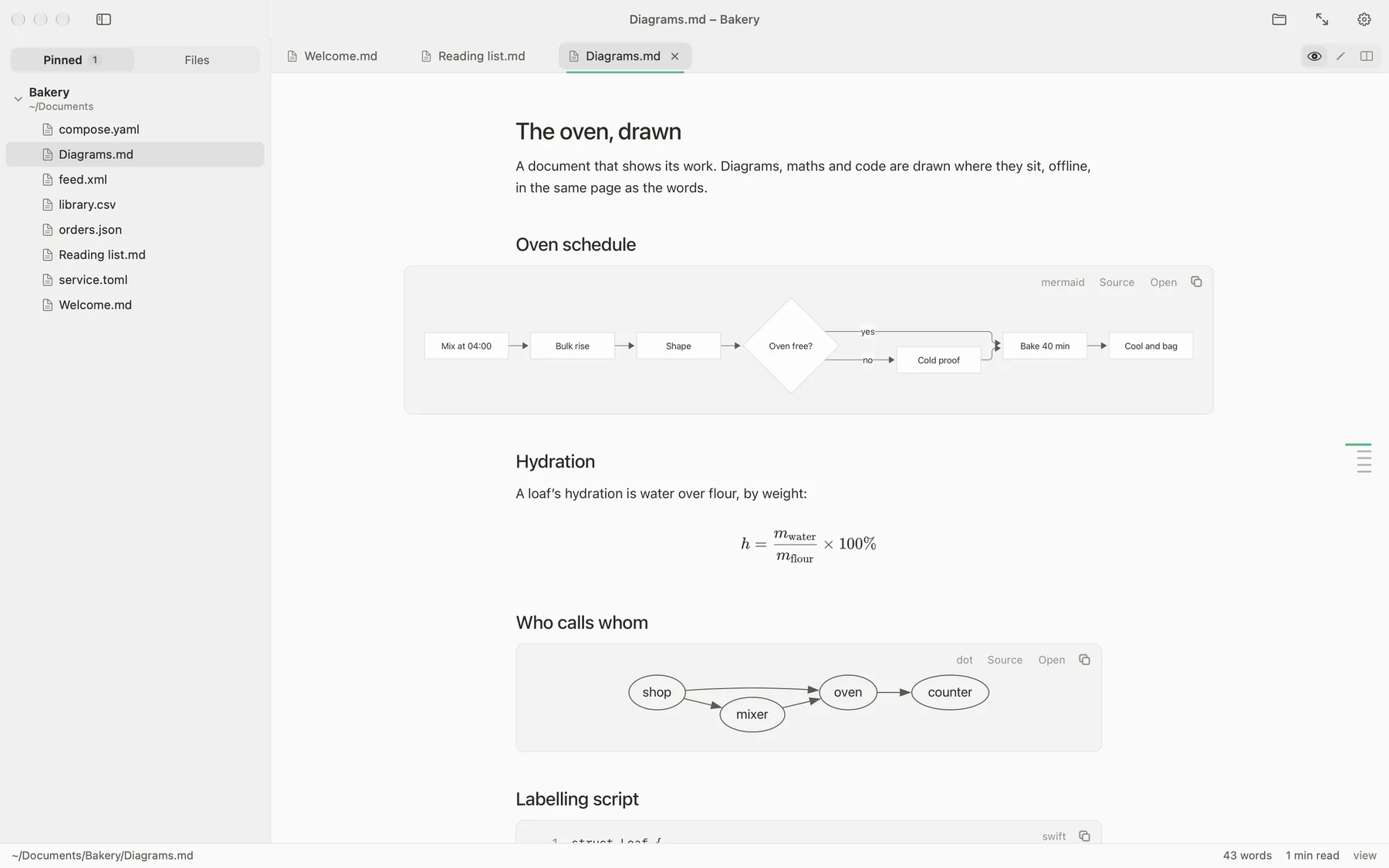
flowcharts, sequence, class, state, ER, gantt, pie and the rest the bundled version draws
dot blocks, compiled to WebAssembly and drawn offline
plantuml blocks, offline
$…$ and $$…$$, typeset with KaTeX
relative paths, absolute paths, SVG, PNG, JPEG, GIF, WebP, data:
highlighted, with a language chip; unlabelled blocks are detected, and you can override it per block and it is remembered
A diagram that cannot be drawn shows its error and the source, never a blank gap. Wide diagrams open full size with scroll to zoom and drag to pan.
The drawing code ships inside the app and runs offline. A picture with a web address is fetched only for that picture, and a switch in Settings turns that off, so opening a document can make no network request at all.
Edit when you must.
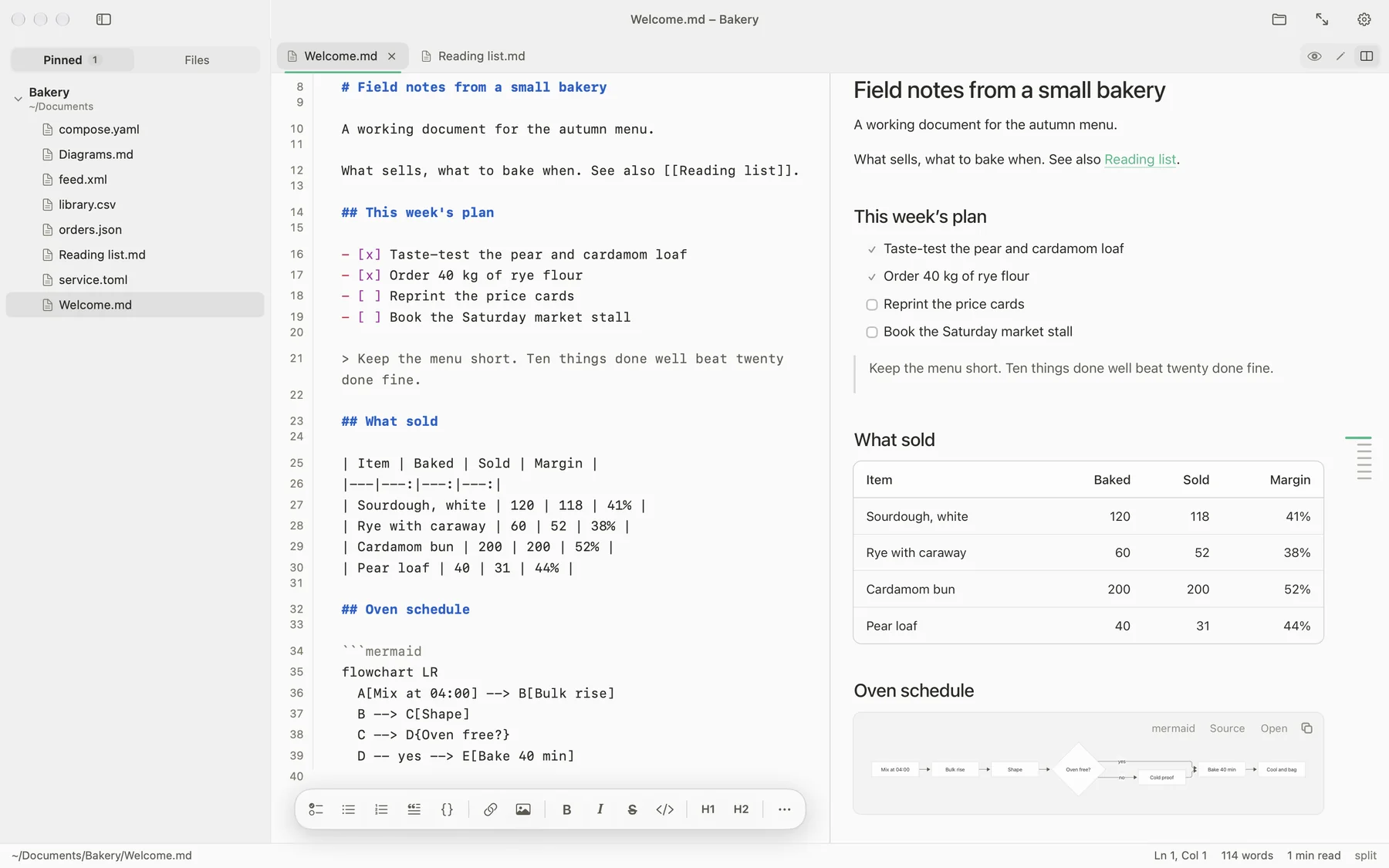

headings, quotes, list markers, task boxes, emphasis, links, and fenced blocks coloured in their own language
re-coloured as you type, not the whole file
placed on any edge (twelve positions); it measures the space it has and shows every tool that fits
⌘B bold, ⌘I italic, ⌘K link
autosave (on by default) or ⌥⌘S
untouched tab reloads silently; if you have edits, a banner offers Reload, Keep mine or Compare
Not just Markdown.
The same window opens the data files that sit beside your notes. Each gets the views that suit it.
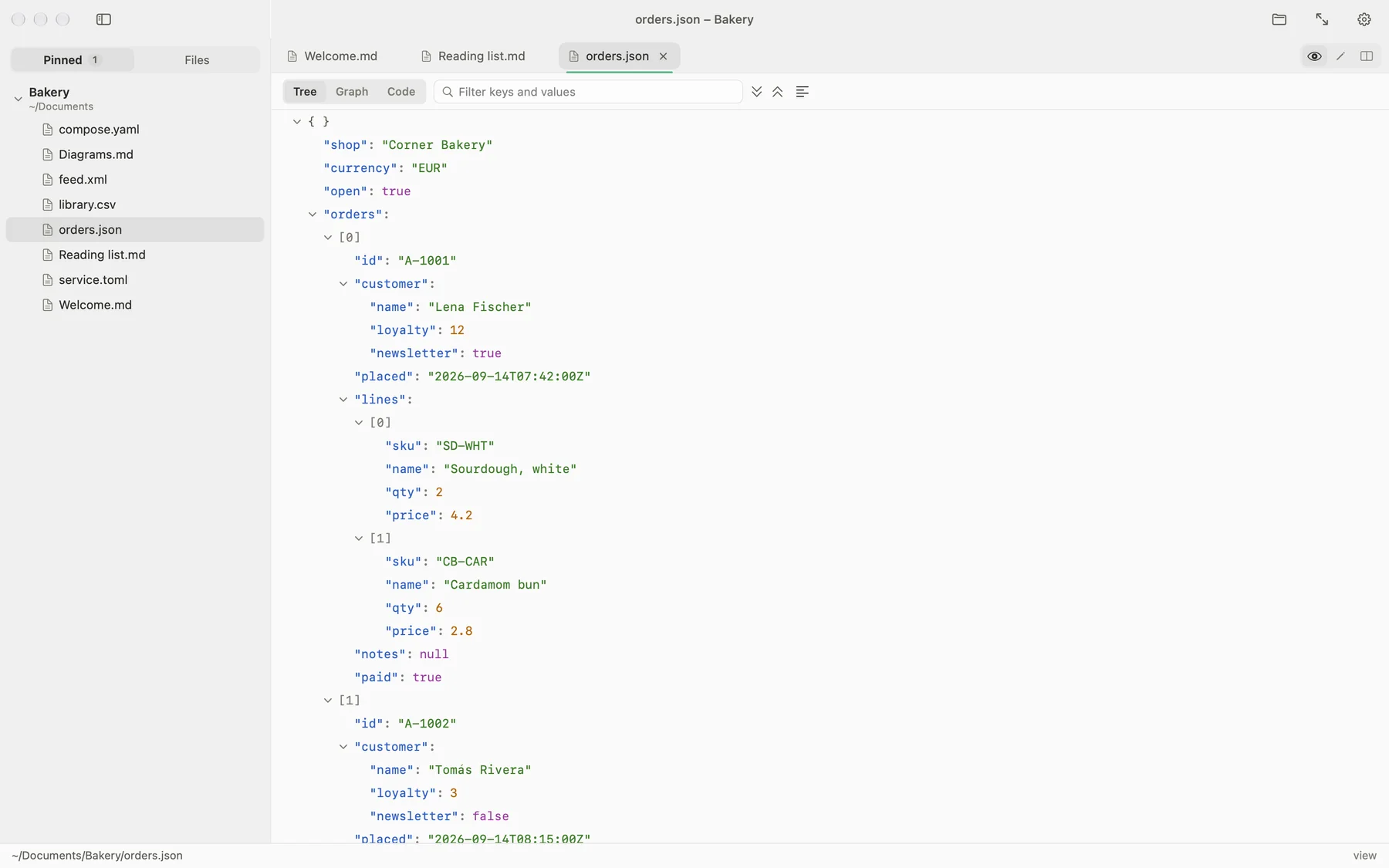
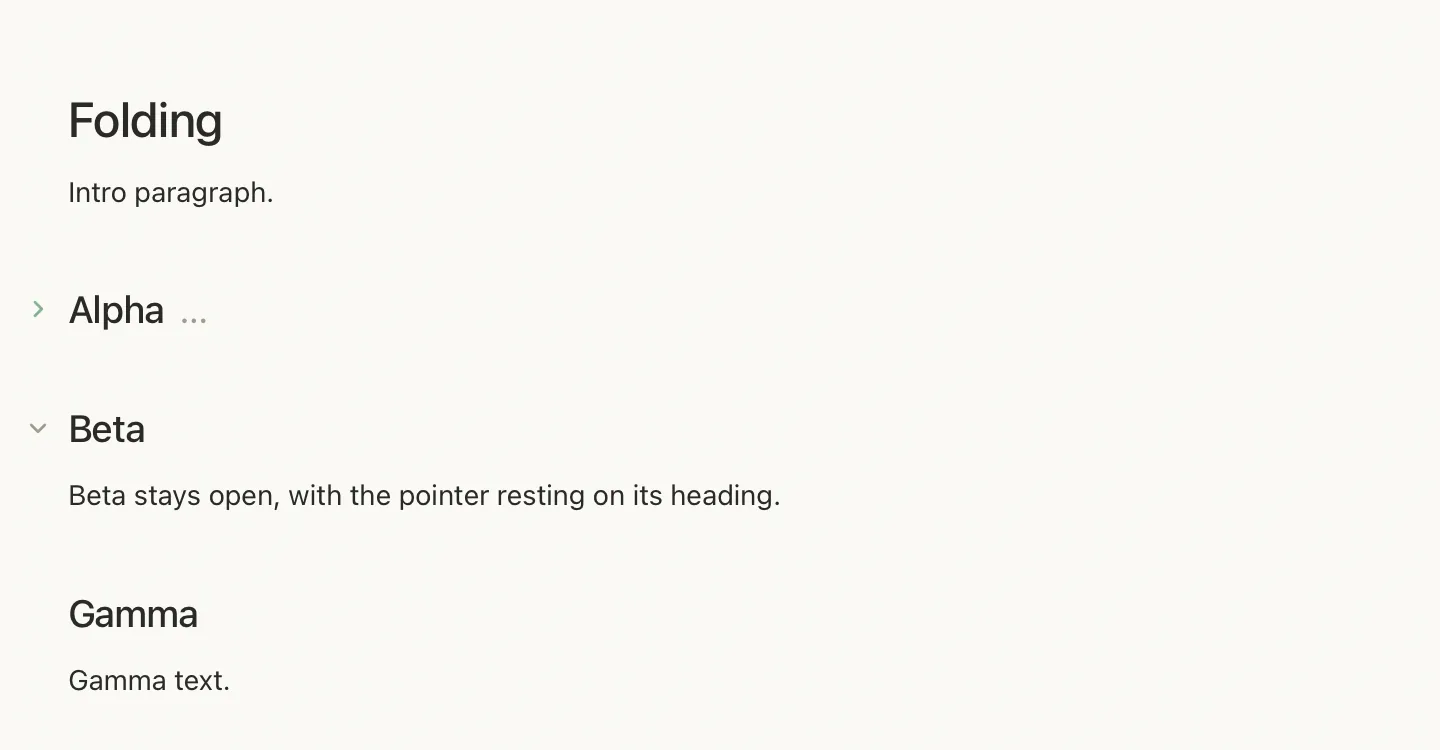
Fold what you do not need; filter keys and values.
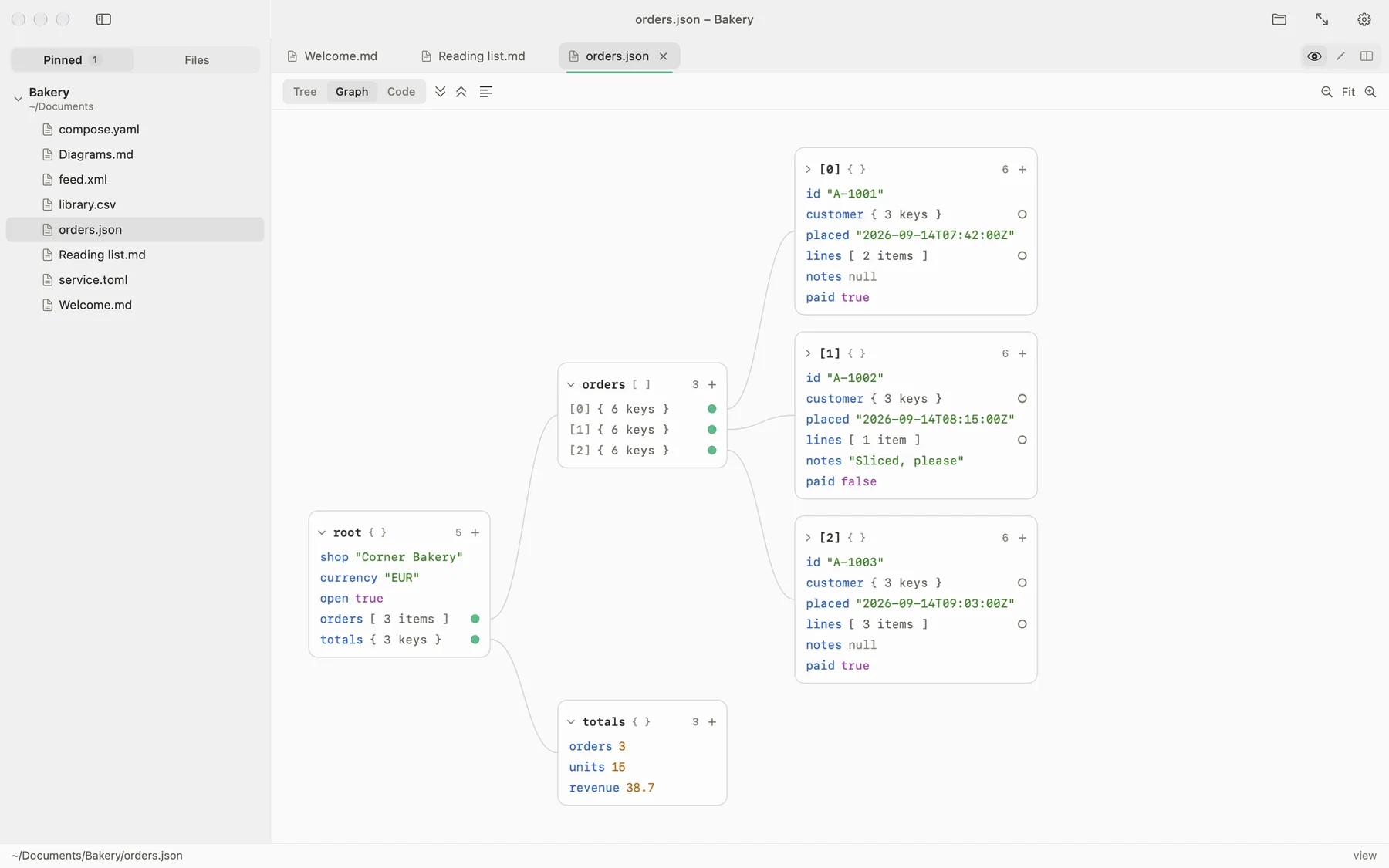
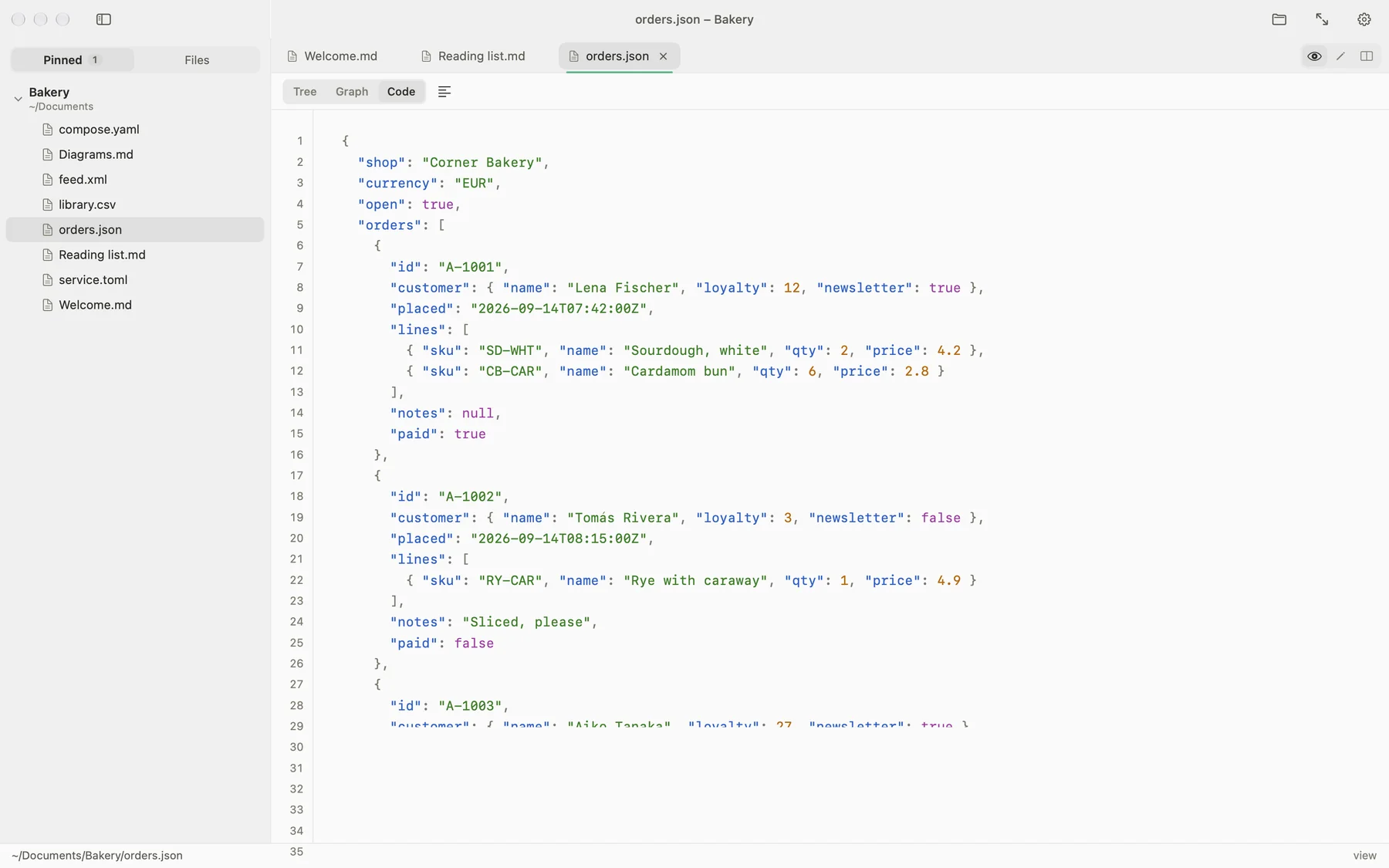
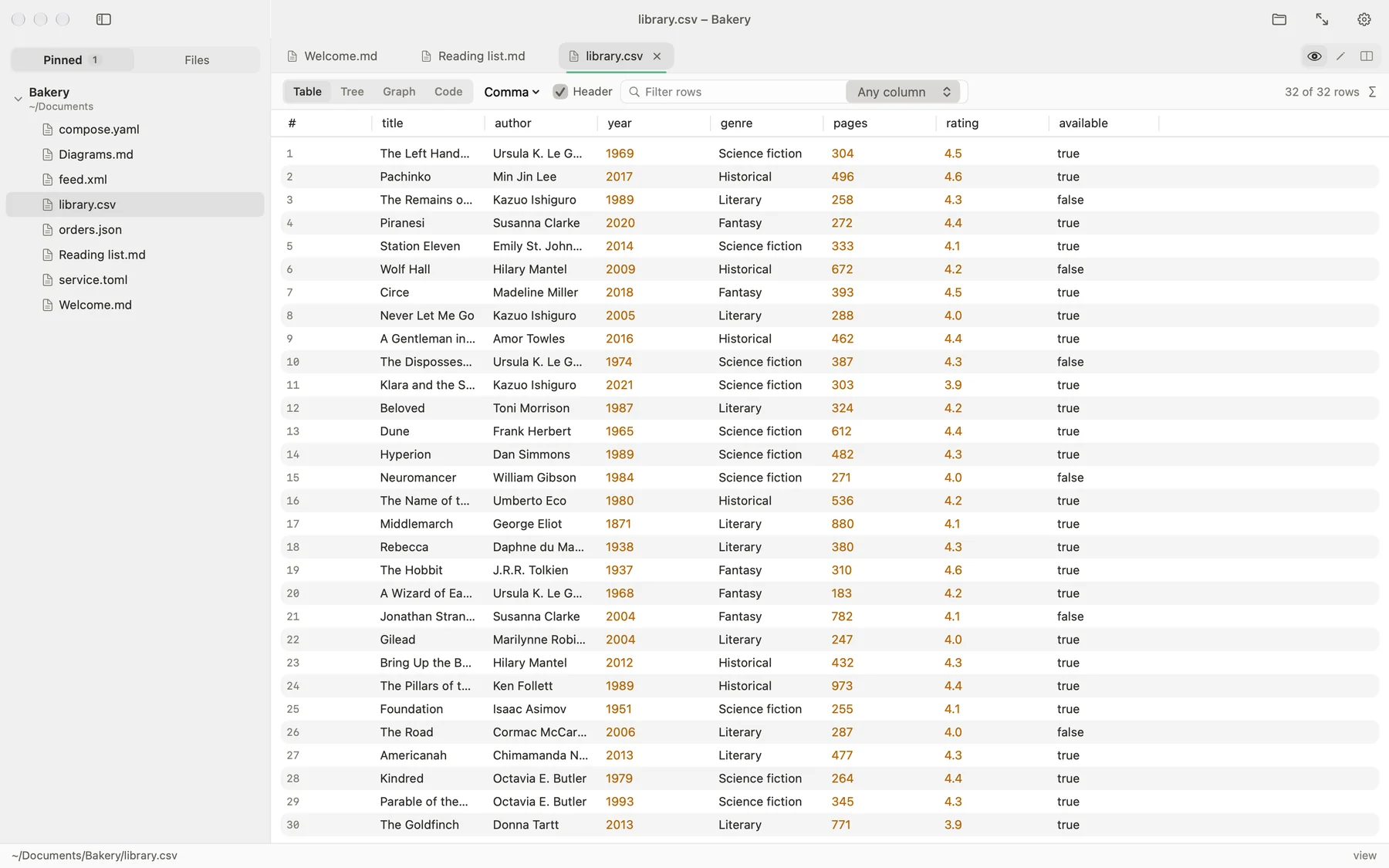
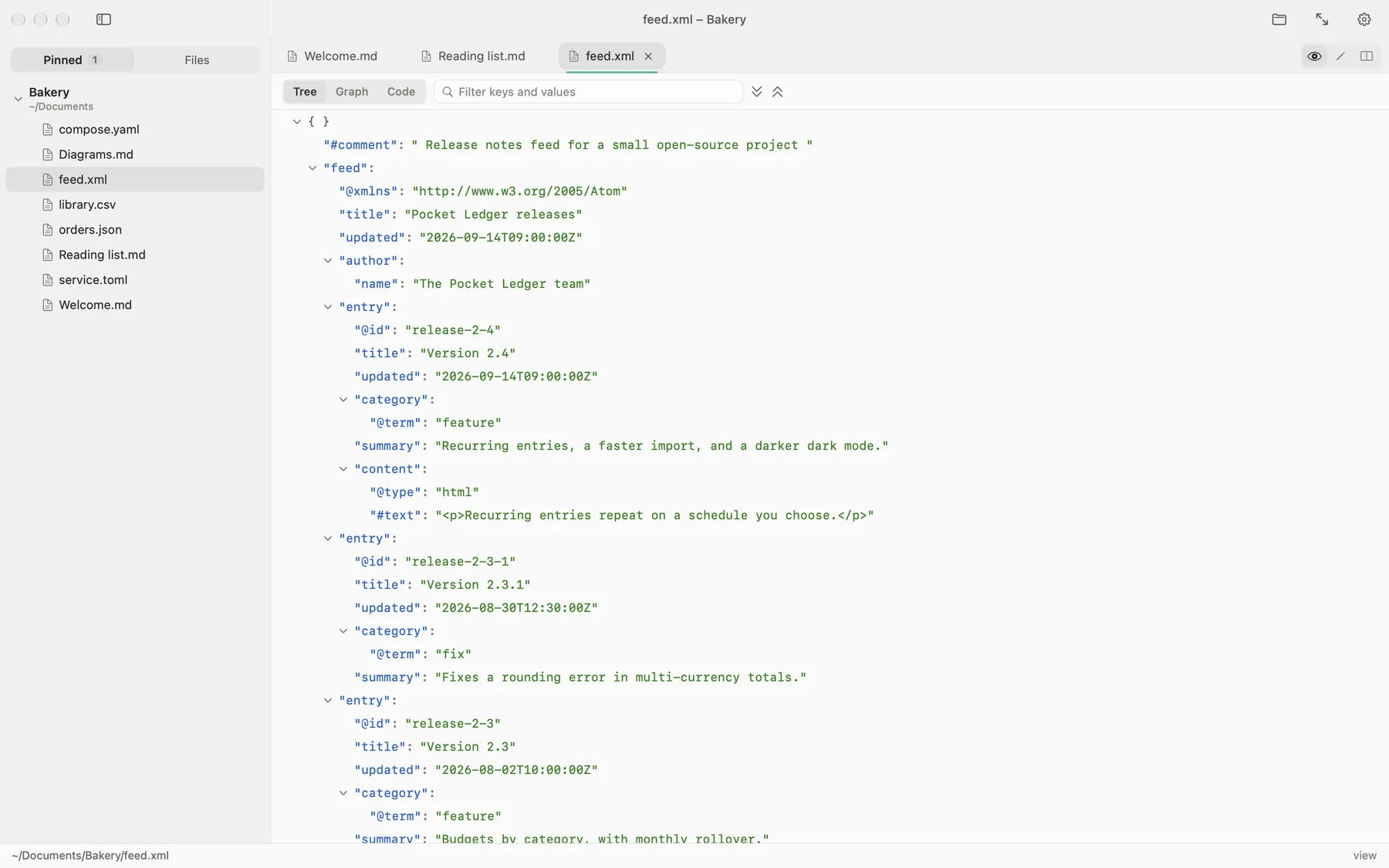
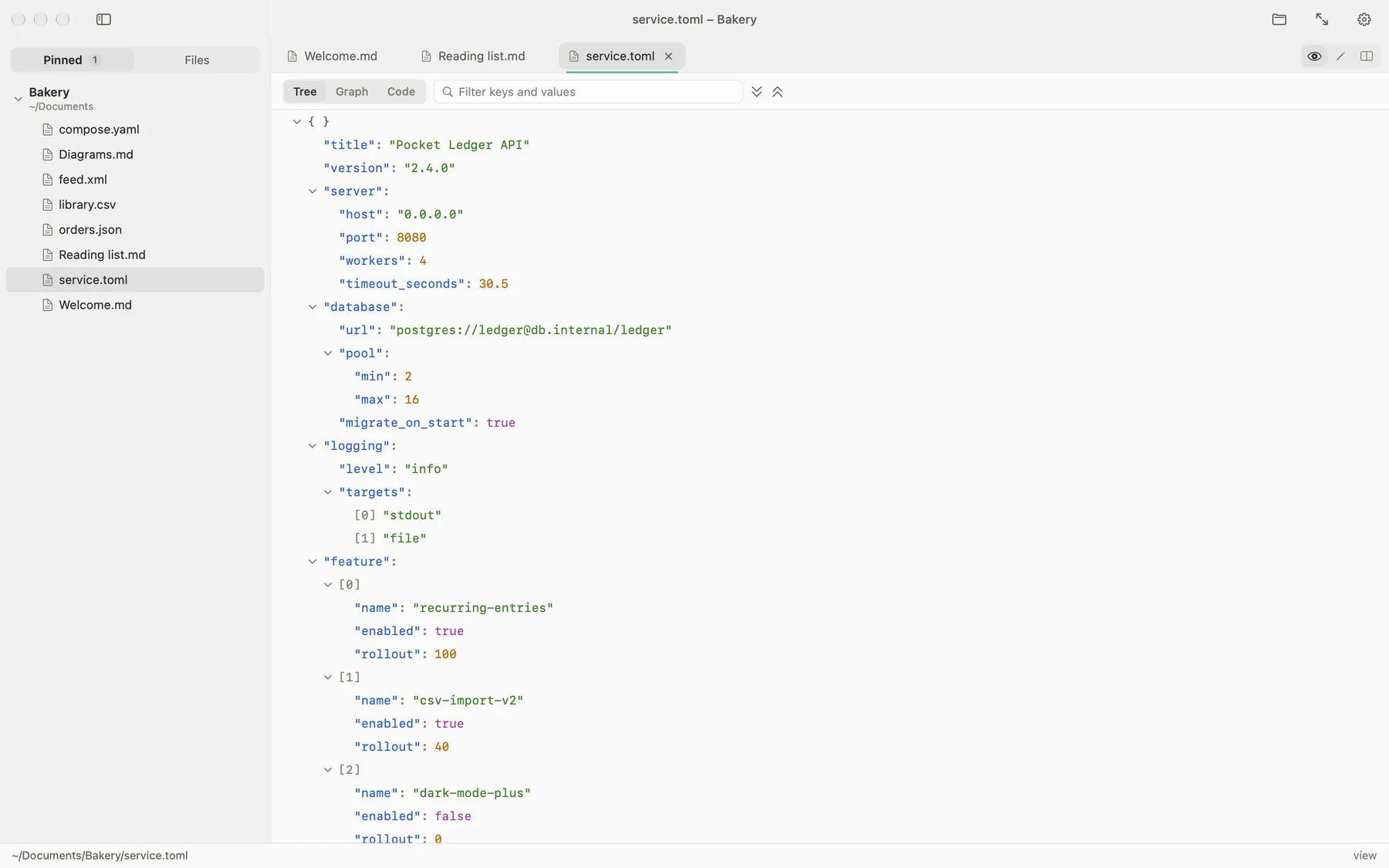
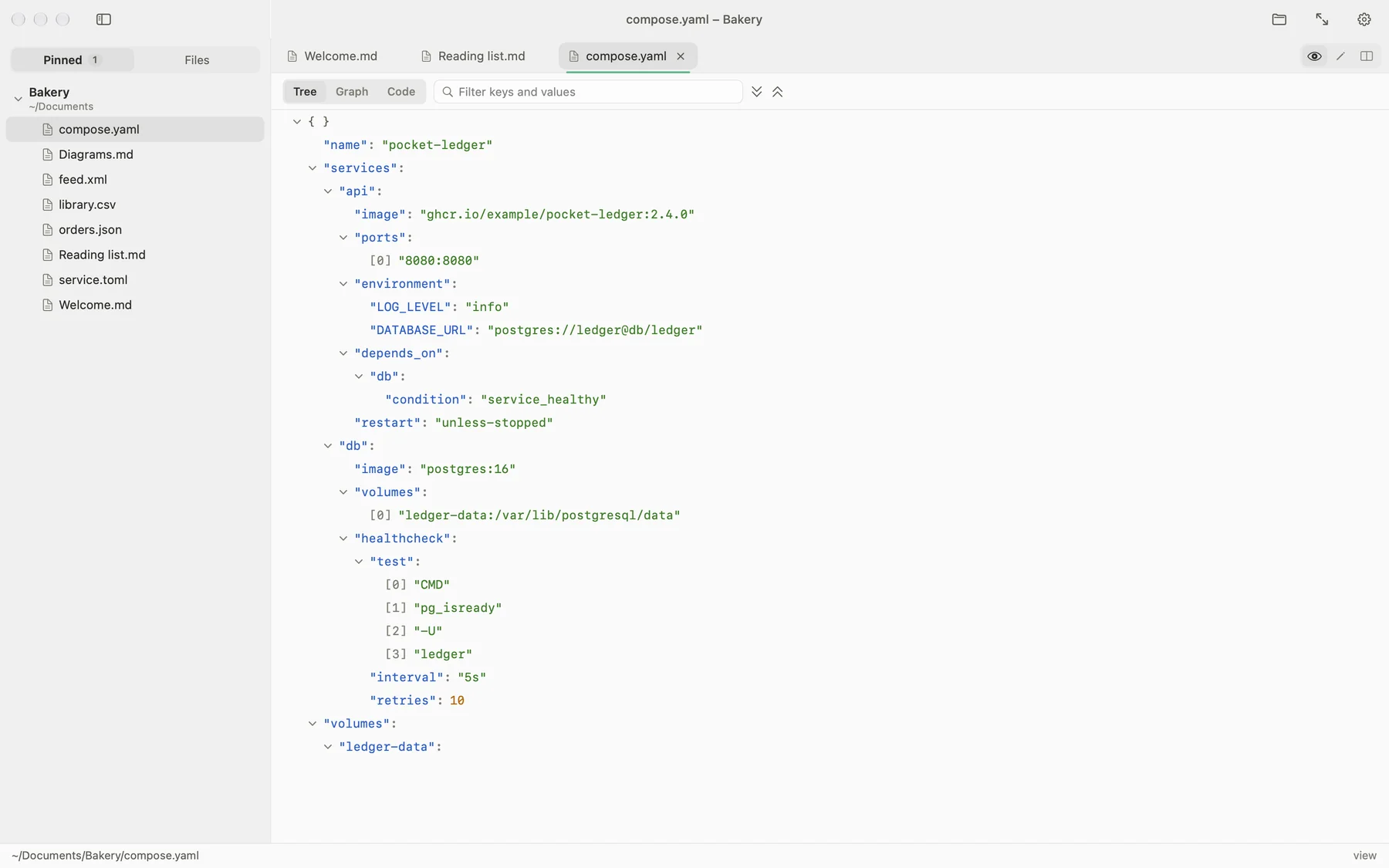
YAML opens as a Tree, a Graph and Code; JSON, XML, TOML and CSV can also be edited from their tree or table and the text follows.
Big files stay quick.
| What | File | Measured |
|---|---|---|
| Open | Markdown, 100 MB | 3.7 s |
| One keystroke in Edit | Markdown, 100 MB | 3.4 ms |
| One keystroke in Split | Markdown, 100 MB | 12.4 ms |
| Table appears | CSV, 102 MB | 0.6 s |
| Sort | CSV, 102 MB | 0.5 s |
| Filter | CSV, 102 MB | 25 ms |
| Edit a cell | CSV, 102 MB | 18 ms |
Measured on a Release build, on one Mac, with generated and public sample files. Markdown over 200,000 characters previews a window of the page around where you are, and the scroll bar still spans the whole file. A CSV over 1 MB is indexed once and read a page at a time. JSON, XML, TOML and YAML are read whole, so a very large one takes longer; the instant-open treatment is for Markdown and CSV.
It behaves like a Mac app.
⌘F, ⌘G and ⇧⌘G in the preview and in the editor
[[Reading list]] wiki links open the note; relative .md links open as tabs; a Backlinks button lists who links here
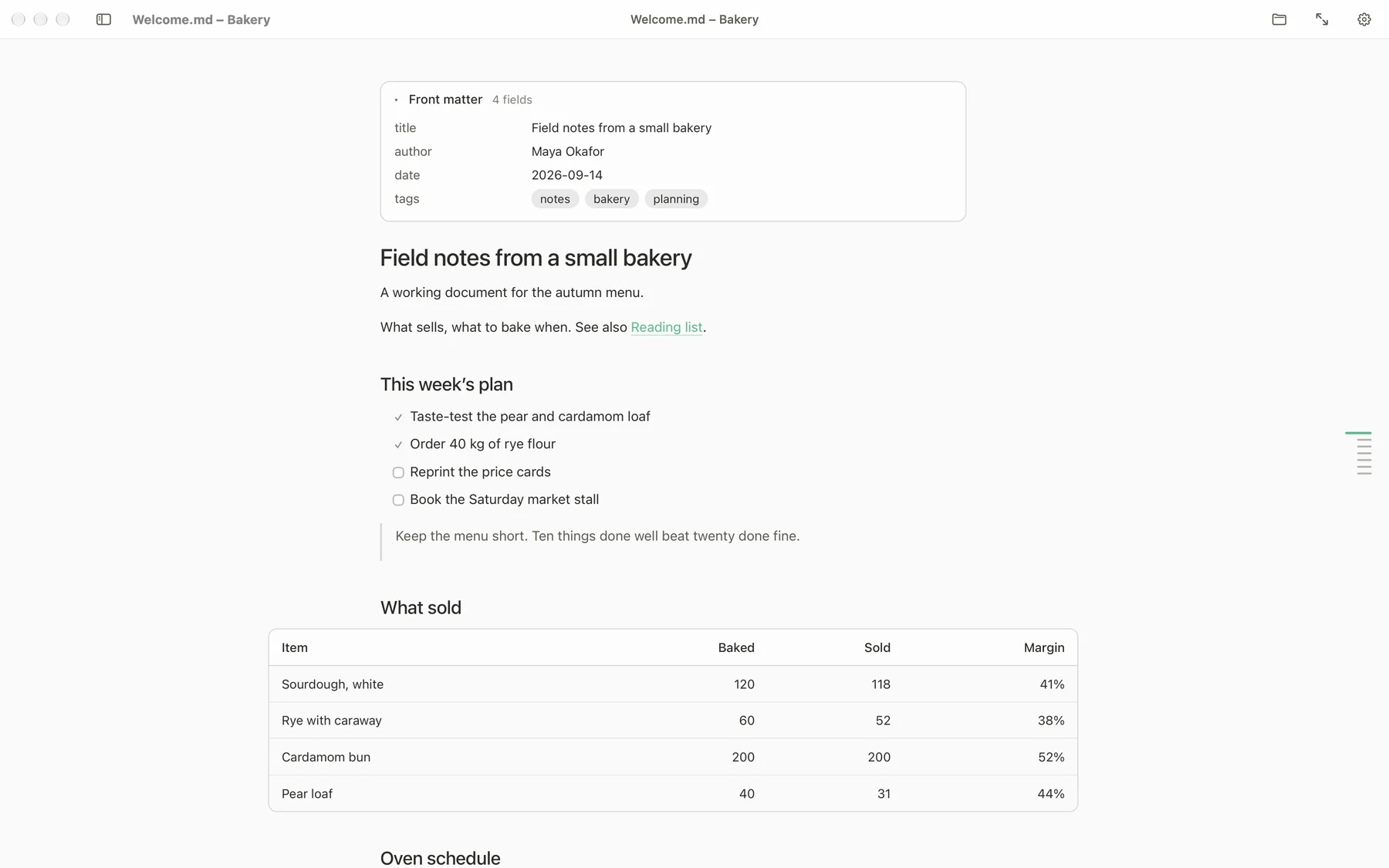
a collapsible card at the top of the page, not raw YAML
as many as you like; drag a tab between them
⌘P, ⇧⌘E for PDF, and export as HTML, Word, RTF, OpenDocument, LaTeX or EPUB, from the File menu or the toolbar. Diagrams travel as pictures
create, rename and delete in the sidebar; hidden files off until you ask
Make it yours.
Settings apply live. No restart.
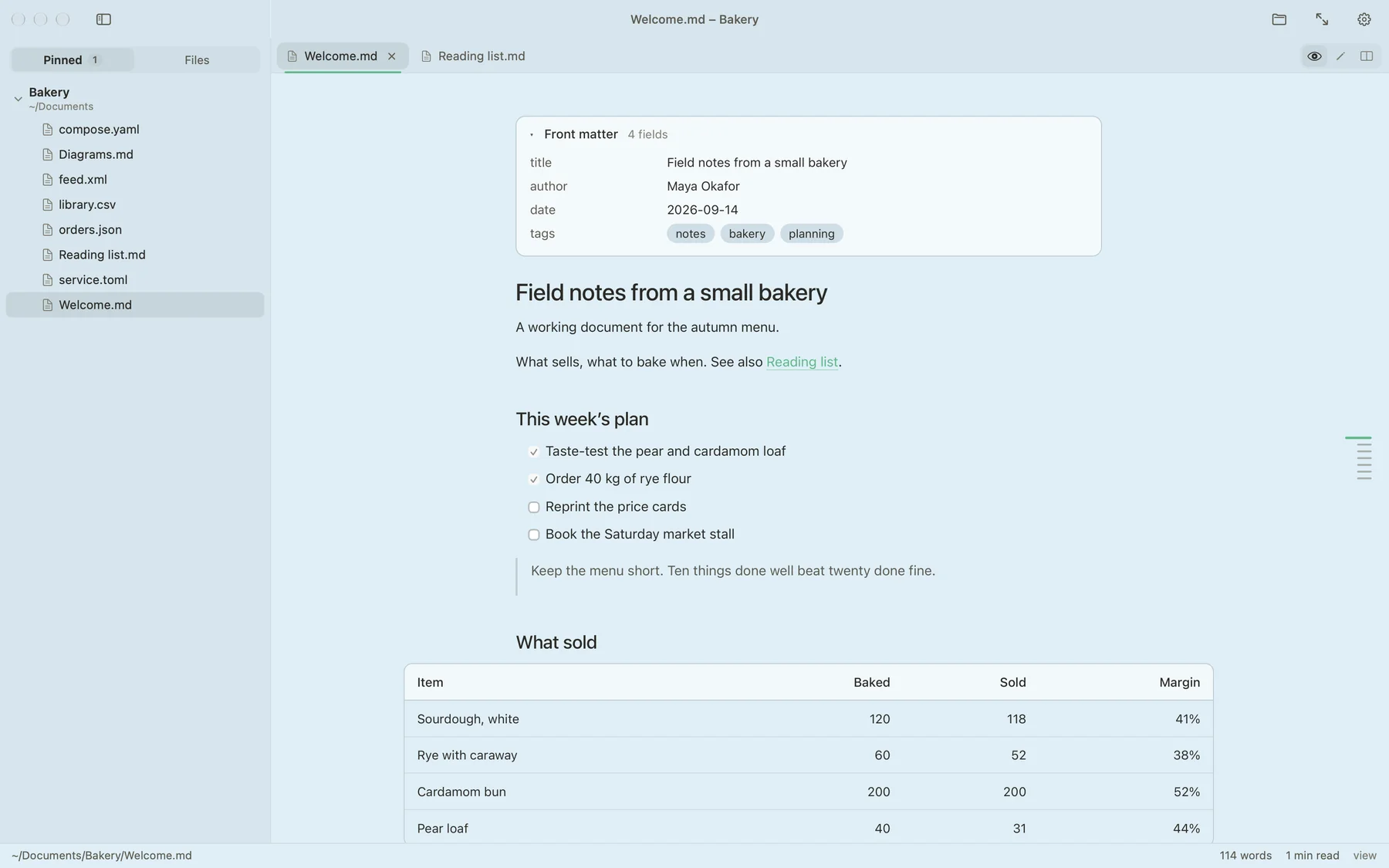
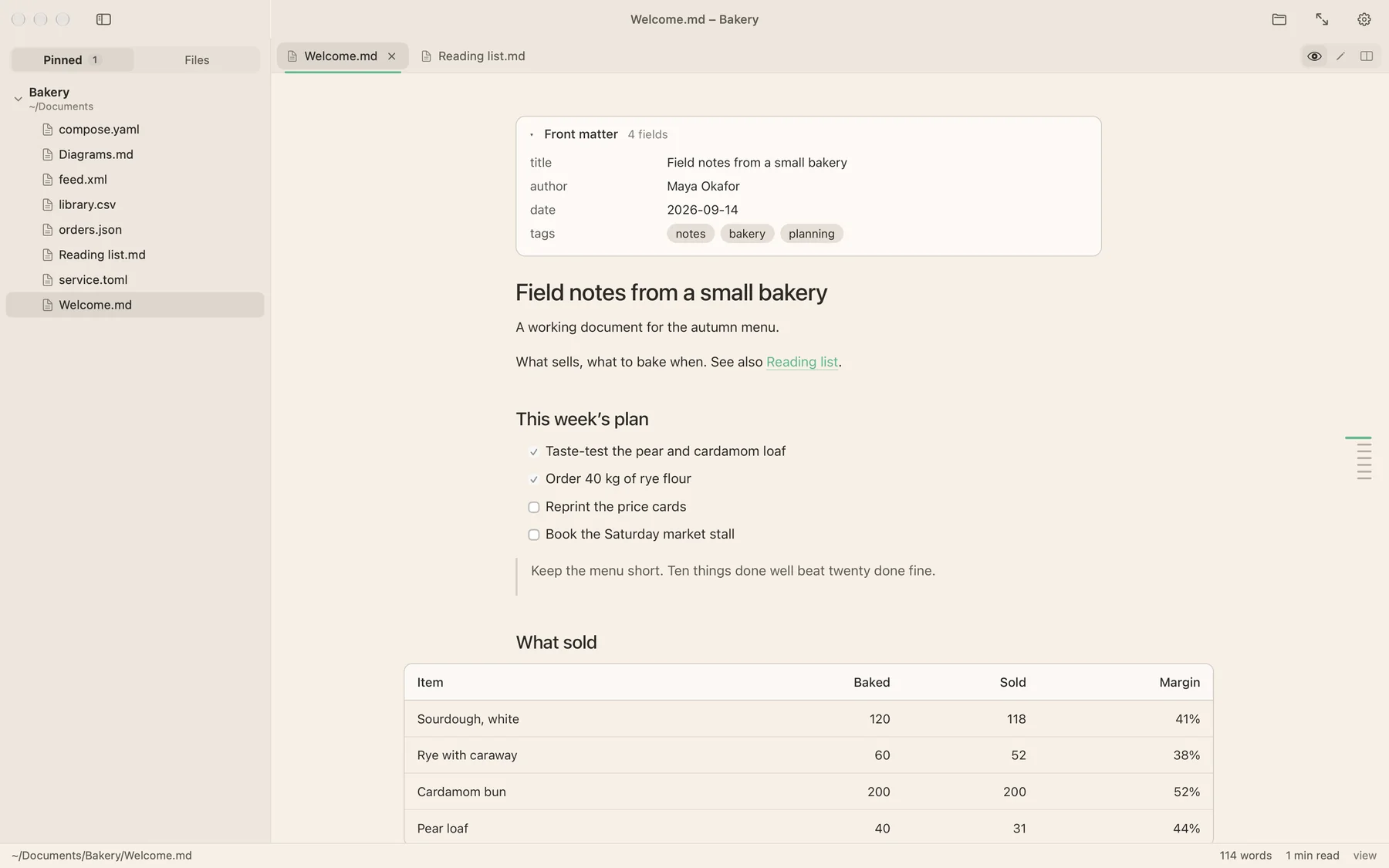
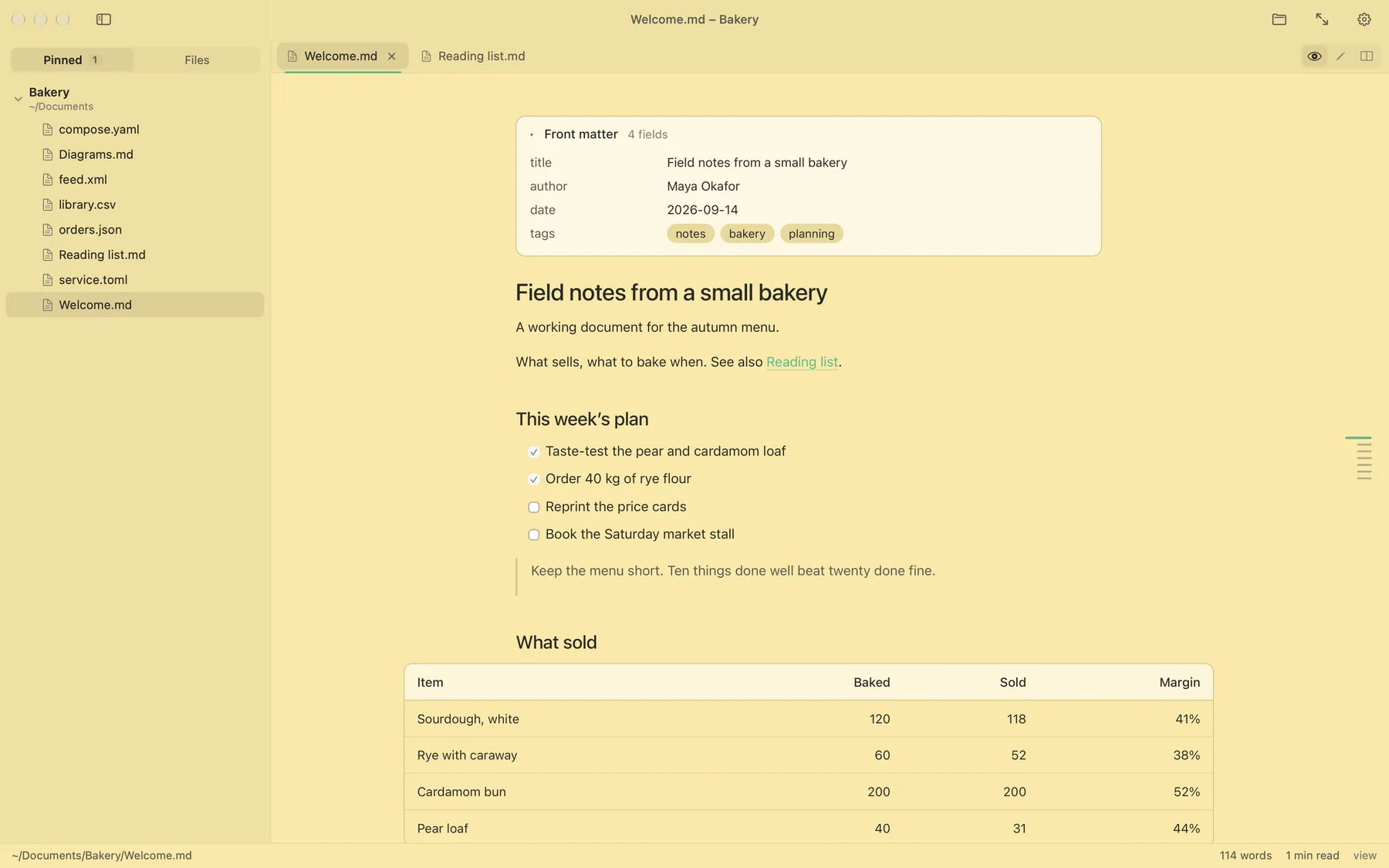
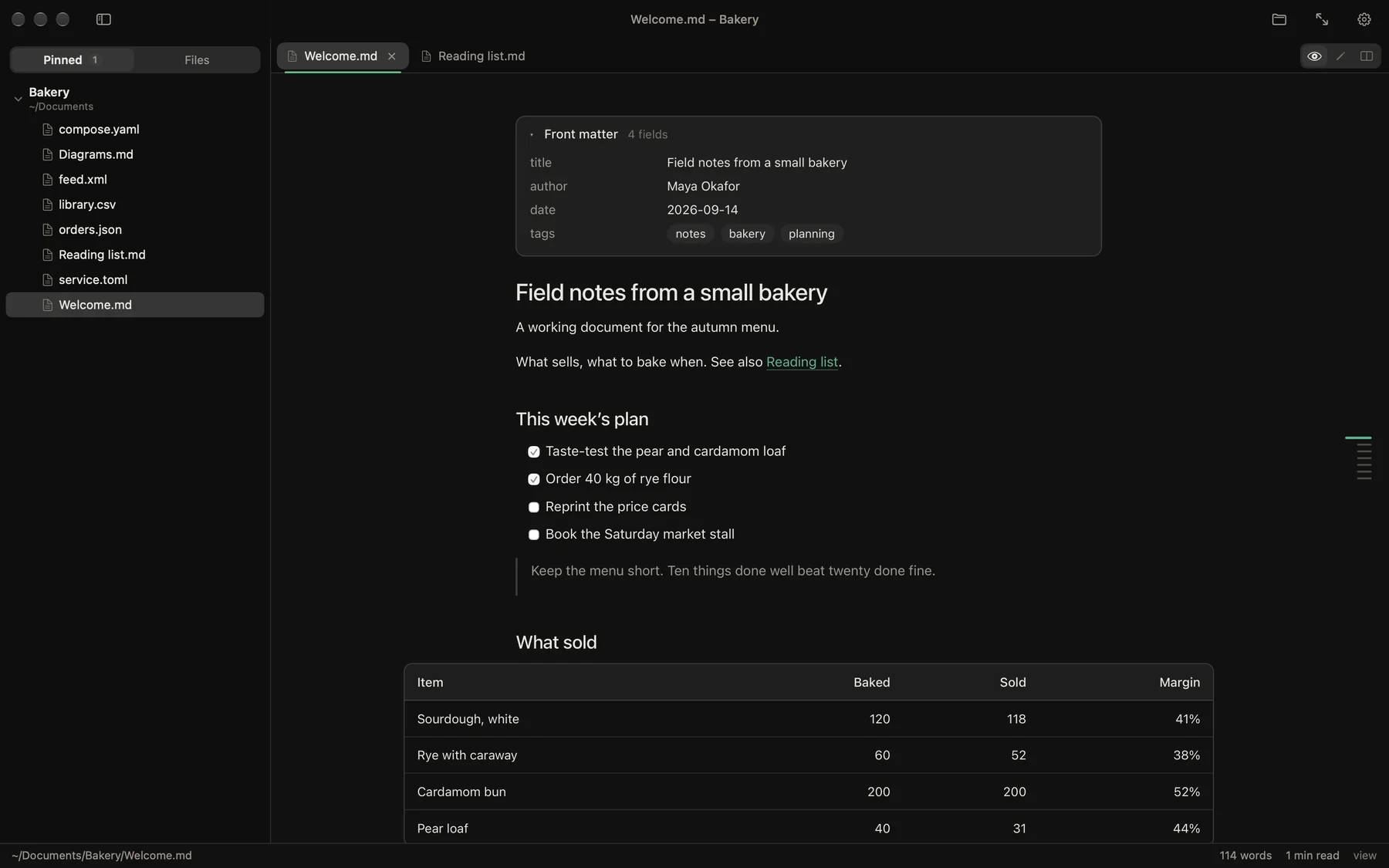
Thirty-five colour themes. The same page, four of them.
Rose · Scarlet · Vermilion · Tangerine · Amber · Bronze · Citron · Lime · Fern · Emerald · Jade · Teal · Lagoon · Sky · Azure · Ocean · Iris · Violet · Orchid · Magenta · White · Snow · Ivory · Pearl · Linen · Light Yellow · Vanilla · Cornsilk · Wheat · Honey · Black · Charcoal · Slate · Graphite · Ash
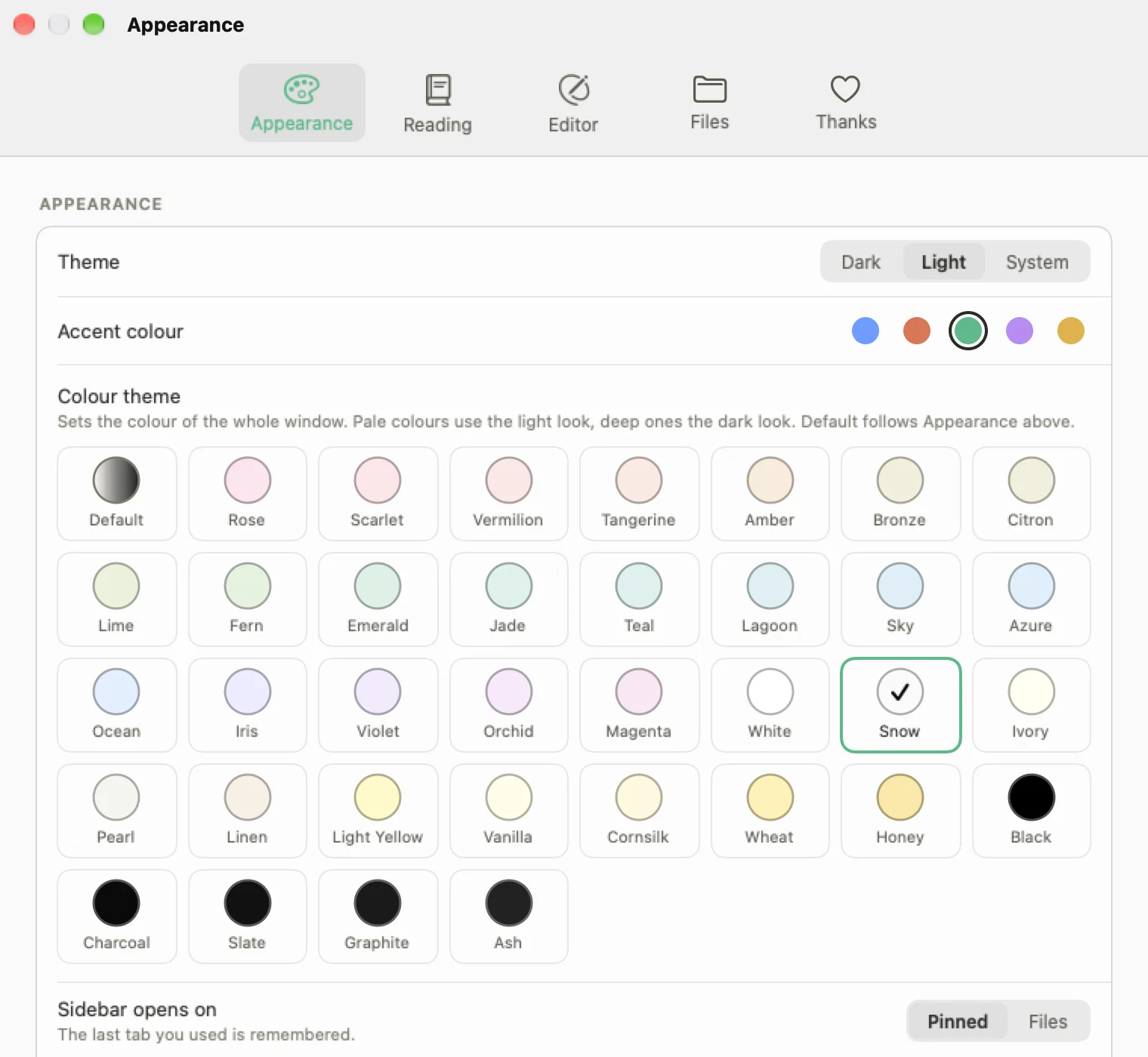
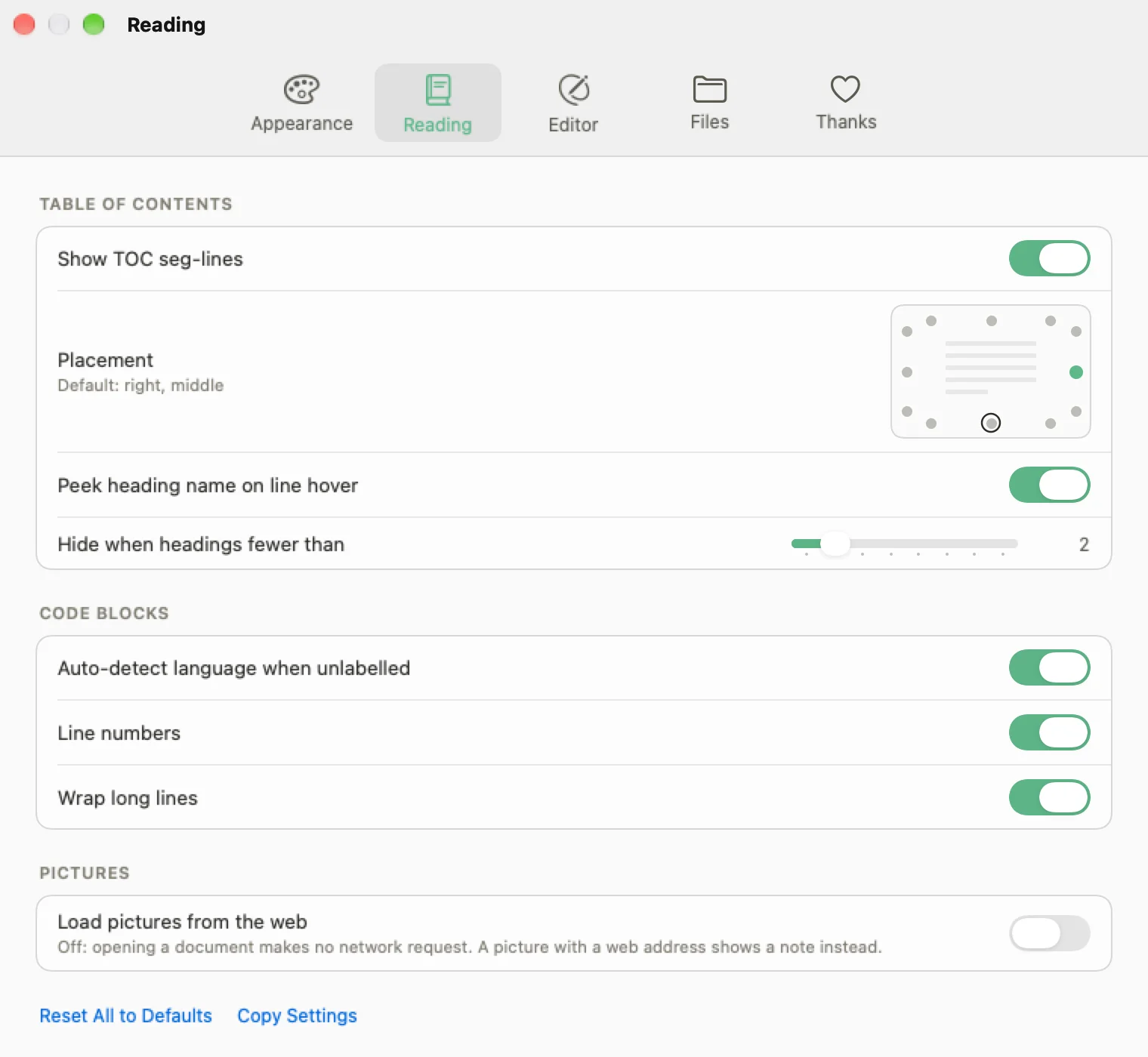
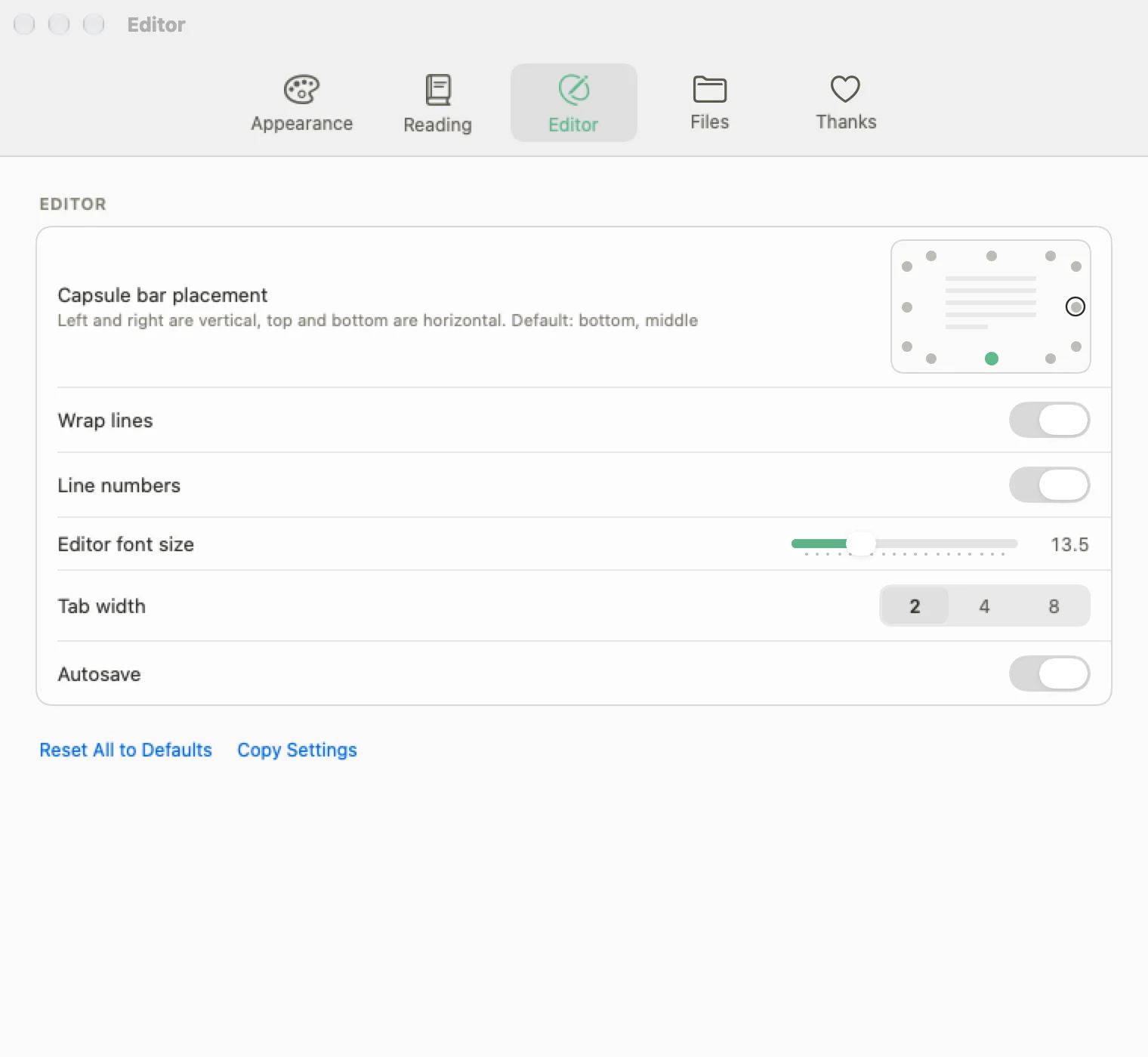
Appearance
Dark, light or follow the system. Five accent colours. Sans or serif body text, 13 to 22 pt, a text column from 440 to 860 pt, line height 1.3 to 2.0.
Contents
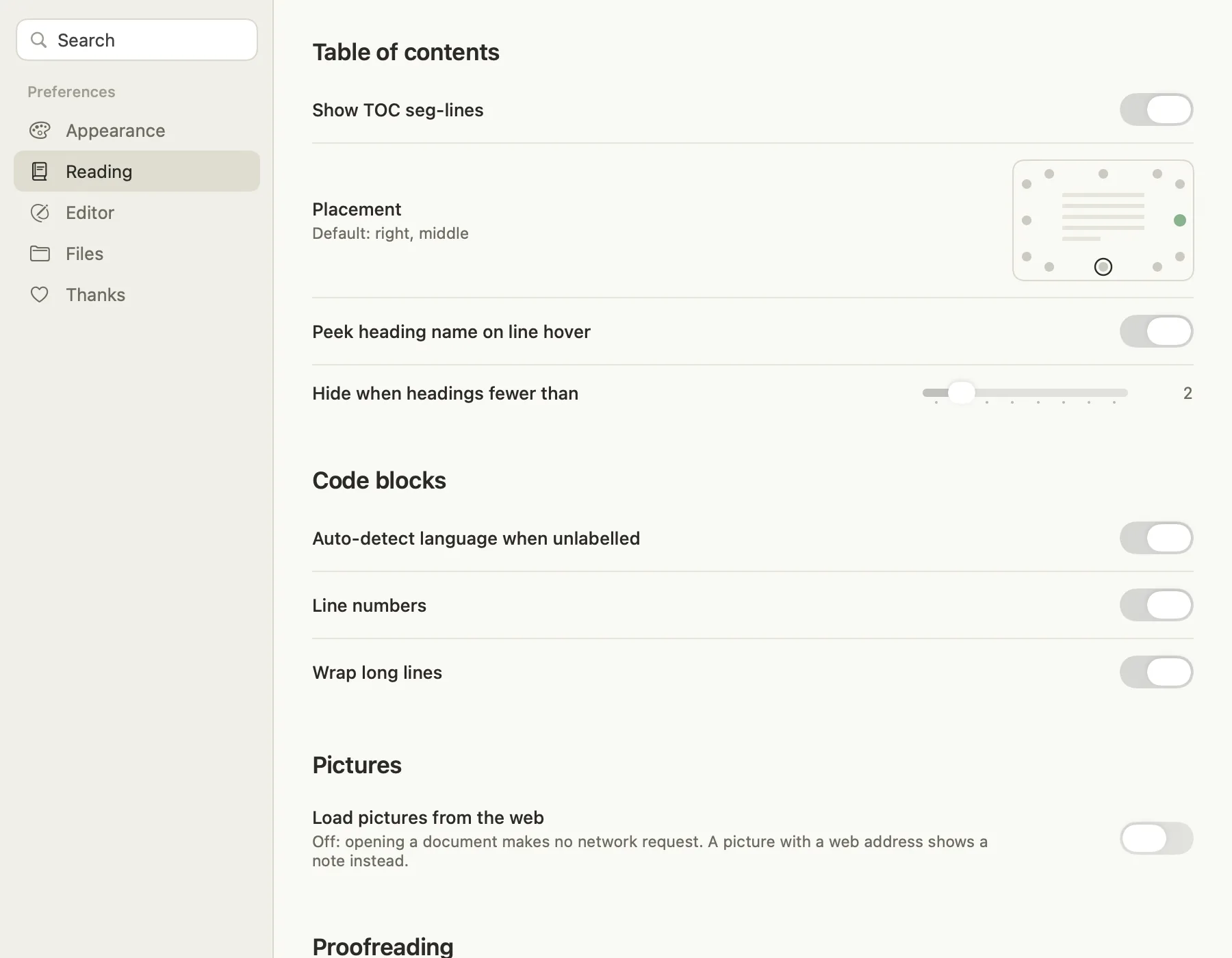
Any edge, any alignment: twelve positions. Hide it when a page has fewer than a number of headings you choose. Peek on or off.
Editor
The capsule on any edge. Wrap, line numbers, 11 to 20 pt, tab width 2, 4 or 8, autosave.
Code blocks
Detect the language when it is missing, line numbers, wrapping. Keep your own override per block.
Pictures
Load pictures from the web: a switch in Settings, off by default. Off means opening a document makes no network request.
Files
Show every file or only the ones Mark View opens. Hidden files on or off.
Everything else it does.
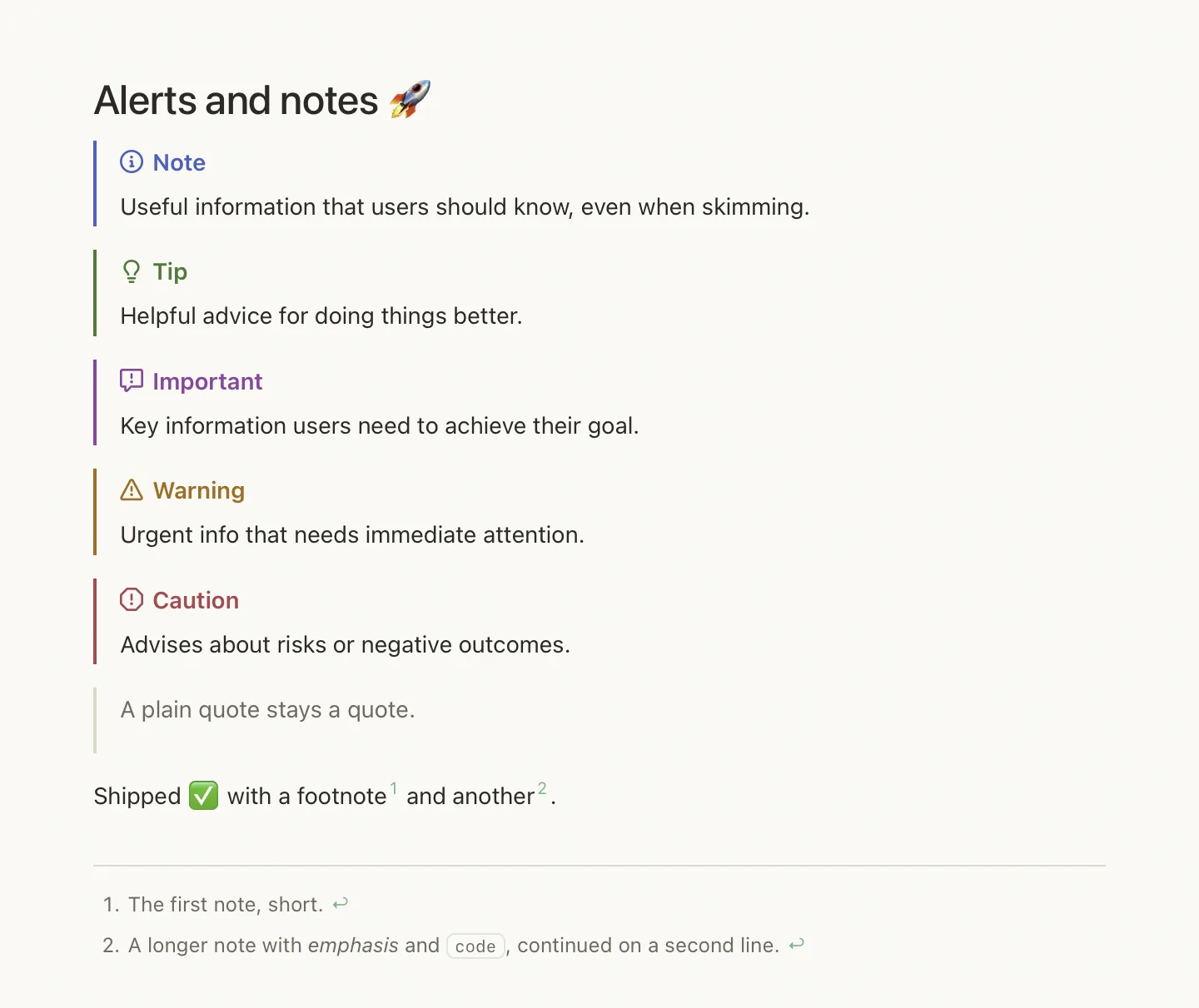
⌘S finds words inside every Markdown file under your pinned folders, not only names and headings
⌘+ and ⌘− from 50 to 300 percent, remembered per document
in the editor, both off by default
the eye on a pinned folder brings the newest Markdown file written under it to the front, for reading what a coding agent writes. A markview:// link opens a file at a line
pinned folders that share a parent sit under one header; a text size slider for the lists
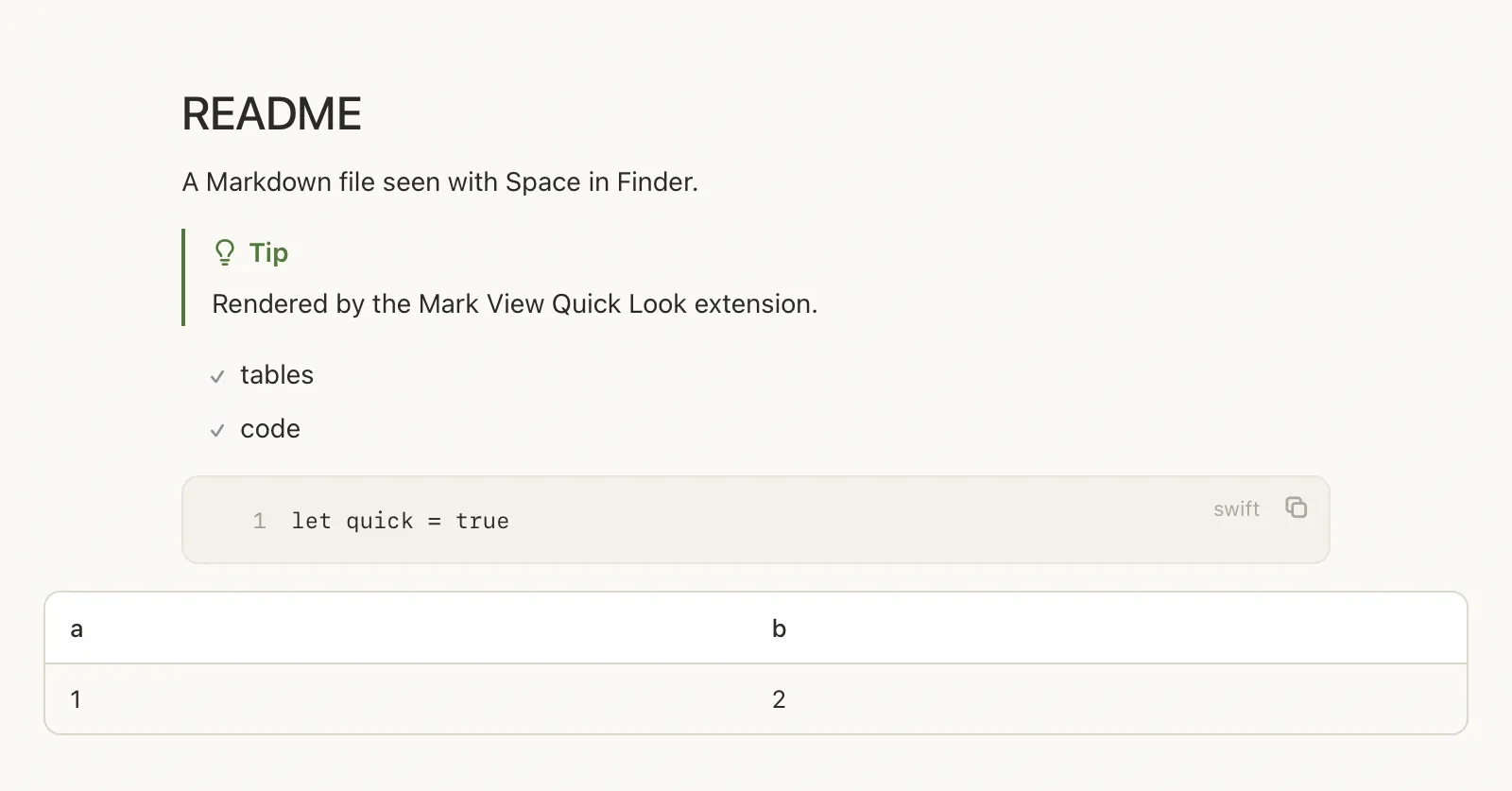
press Space on a Markdown file in Finder to see it rendered, without opening the app
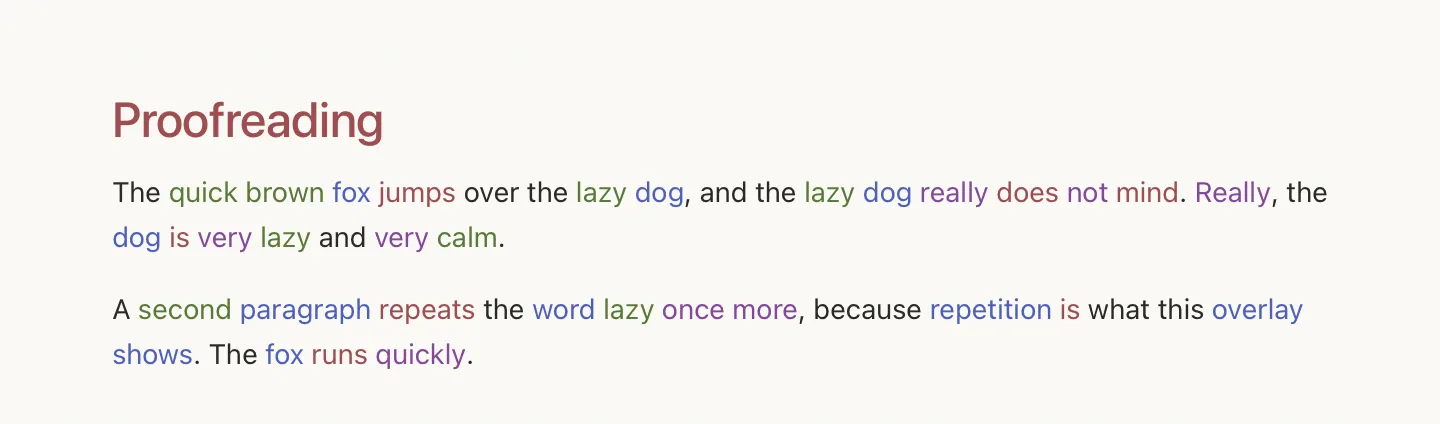
nouns, verbs, adjectives and adverbs, repeated words and your own keywords, shown as a colour overlay
Your files never leave your Mac.
- No account. No analytics. No telemetry. No cloud.
- Mark View is sandboxed. It can read only the files and folders you open or pin; it remembers a pinned folder with a security-scoped bookmark, and nothing else on disk.
- Your page is untrusted input. HTML inside Markdown is sanitised, diagrams run in strict mode, no remote script runs, and images load only from your document’s folder and the folders you have pinned.
- The sandbox lists four entitlements. The network one is there so the web view can load a picture that has a web address; that is the only thing it is used for, and Settings ▸ Reading ▸ Load pictures from the web switches it off, by default, so that opening a document makes no network request. No code in Mark View opens a connection of its own; the App Store handles the subscription.
The entitlements, in full
com.apple.security.app-sandbox = true
com.apple.security.files.user-selected.read-write = true
com.apple.security.files.bookmarks.app-scope = true
com.apple.security.network.client = true
This isn’t a policy, it is how the app is built, and you can check.
One document free. More for $9.99 a year.
Pricing
Free, forever
One open document, with every feature.
$9.99 a year
Open any number of documents at once. Renews until you cancel, through the App Store.
No trial. No account. Manage or cancel in your Apple Account settings.
What counts as one document?
A document is open while it has a tab or a window. Open a second and Mark View asks about the subscription; close the first and the free slot is yours again. The same file open twice counts once.
What if the subscription ends?
Nothing is closed and nothing is lost. Tabs you already have stay readable, but editing is switched off while more than one document is open. Close down to one and you can edit again; opening another asks about the subscription.
Does it sync? Is there an iPhone app?
No. Mark View works on the files on your Mac and nothing else. It does not copy them anywhere. If your files live in iCloud Drive, Dropbox or a Git folder, they keep syncing the way they do today.
Can I get my files out?
They are already out. Mark View never imports. The .md, .json, .csv on disk are the documents.
Why does it use the network at all?
Only for pictures with a web address, and only if you turn that on: Settings ▸ Reading ▸ Load pictures from the web is off by default. Everything else Mark View draws is built in and offline, and the App Store handles the subscription.
Do you have offer codes?
Yes, I give some out. If you have one, choose Mark View ▸ Redeem Offer Code…, or the link on the subscription screen. The App Store takes the code and unlocks the app.
What is the catch?
$9.99 a year after the first document. One developer, more than a thousand automated tests, nothing to cancel except the subscription.